Crop Tool
Click, paste or drag and drop files to edit
Select an image file jpg, png, webp

Drag and drop
OR
How to crop an image or photo
Upload an image
Use the form above to load an image. Click the 'Upload image' button, copy and paste or drag and drop an image into the uploader.
Draw and Apply Crop
Draw the crop rectangle over the area you wish to crop in the image. Drag the handles to precisely resize the crop area as needed and apply the crop.
Download or save
Export and download your edited image or save it to your account.
Learn More About
the Crop Tool
On this page
1. About the Image Crop Tool
The Image Crop Tool allows you to trim and adjust the framing of your images. You can select the area you want to keep and remove the unwanted parts, making your images more focused and visually appealing. With this online tool you can choose from several presets to get the right aspect ratio for your cropped photo. Upload a photo from your computer or use a sample image to use the crop tool.
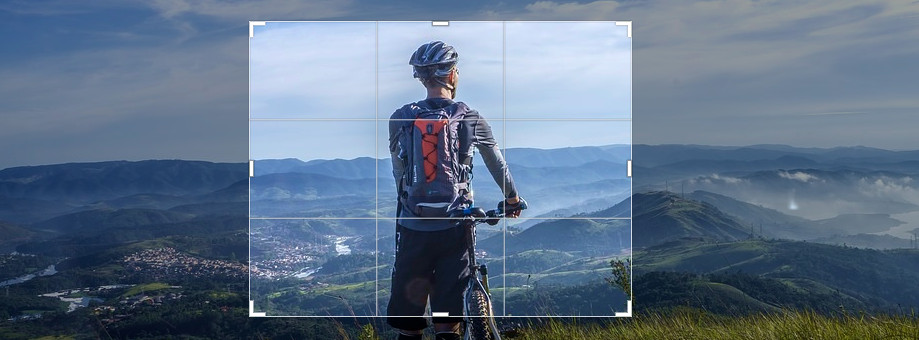
2. How the Crop Tool Works
The Crop Tool works by allowing you to select a portion of your image that you want to keep. The selection of the crop area is made by clicking and dragging a rectangular selection over the area of the image you want to keep. You can adjust the crop area using the crop handles and choose an aspect ratio if needed. Once you have selected the desired area, you can apply the crop to trim the image accordingly.
2.1 Crop handles
Crop handles are used to adjust the size and position of the crop area. You can click
and drag the handles at the corners and edges of the crop selection to resize it. This
allows you to precisely define the area of the image you want to keep.
Control handles are areas in and around the drawn crop rectangle that can be
pressed and dragged to modify the drawn crop rectangle.
Edge handles are on the top, left, bottom and right edge.
There are also handles for the four corners of the crop rectangle.
The areas inside and outside are used to move the crop rectangle relative to the image.
As you move the mouse over a drawn crop rectangle and its handles, the cursor changes to
indicate how the handle can alter the existing crop rectangle.
The 10 control handle regions are as follows:
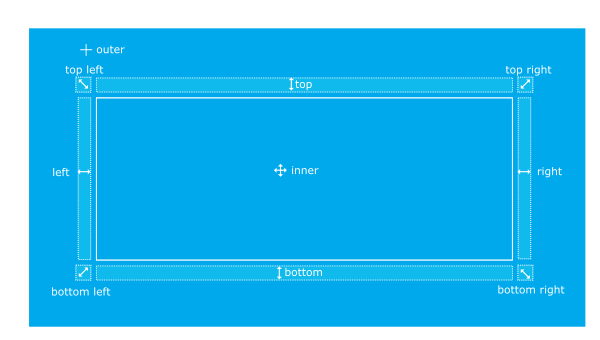
- inner - moves the crop rectangle relative to the image.
- outer - moves the crop rectangle relative to the image.
- top - changes the height of the crop area while simultaneously changing its y position.
- left - changes the width of the crop area.
- bottom - changes the crop area height.
- right - changes the width of the crop area while changing the x position.
- top-left - changes width or height of crop rectangle, may change either the x or y top-left positions or both.
- top-right - changes the width or height of crop, may change the y position.
- bottom-right - changes the width or height of crop.
- bottom-left - changes the width or height of crop, may change the x position.
2.2 Aspect ratio
The aspect ratio setting allows you to constrain the crop rectangle to a specific ratio. When an aspect ratio is set, resizing the crop rectangle will maintain the specified width-to-height ratio, ensuring consistent proportions for the cropped area. The editor provides options to select common aspect ratios or define a custom ratio, making it easier to maintain consistent proportions when cropping images.
3. Crop Tool Settings
- Aspect ratio: Sets aspect ratio that the crop rectangle will be drawn with.
